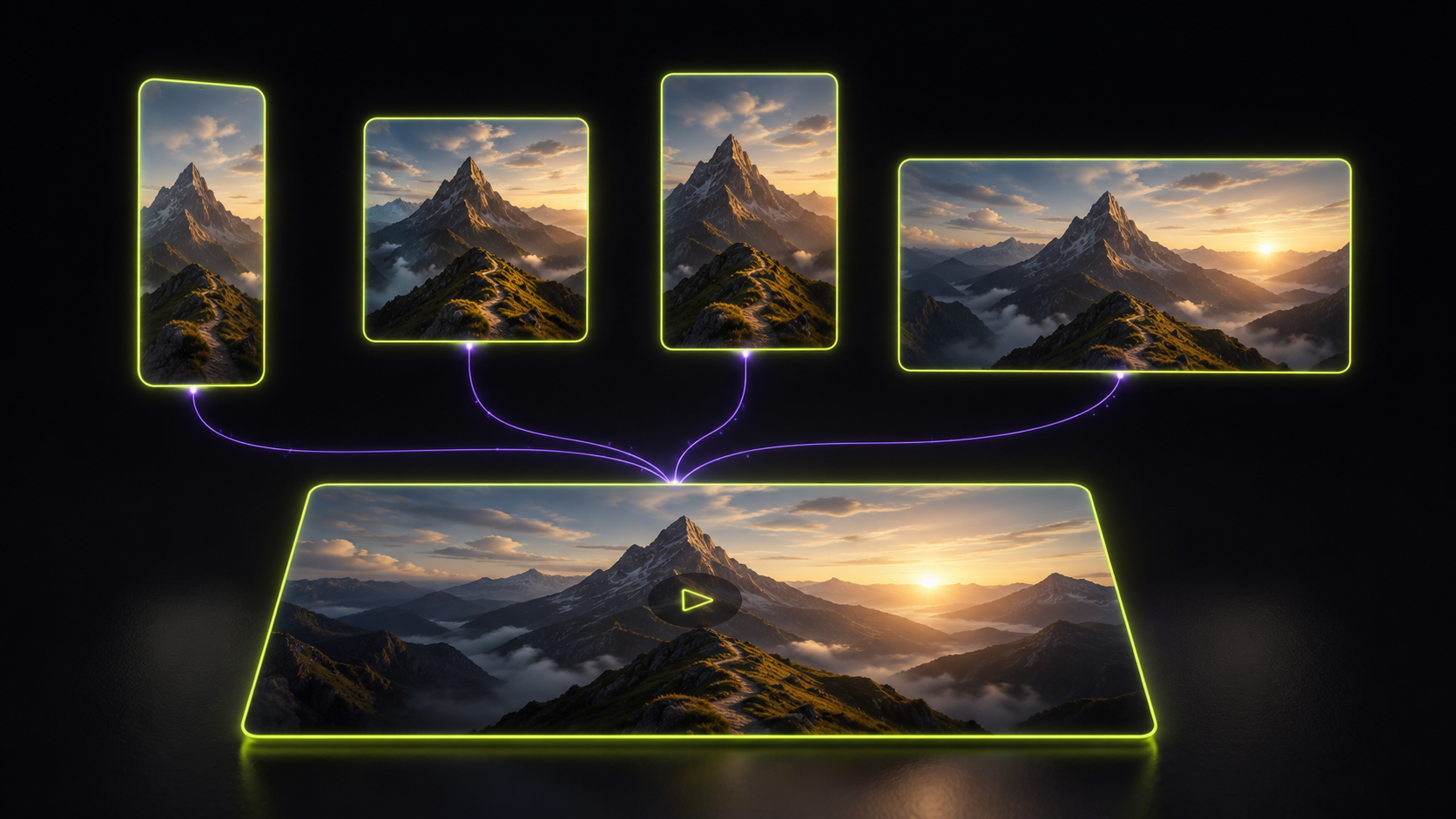
Post a landscape video to Reels and the algorithm doesn't punish you out of spite, it punishes you with math. A 16:9 video in a 9:16 feed uses about a third of the screen; the rest is dead space, viewers scroll past, watch time tanks, and distribution follows. Video size isn't a technical detail. On social platforms, the aspect ratio is the format. Here's the ratio every platform actually wants, and how to cut one video into all of them: free, in your browser, in a couple of minutes.
Why the ratio decides your reach
Three forces make video dimensions matter more than almost any other packaging decision:
- Screen real estate. Vertical full-screen video (9:16) occupies roughly three times the pixels of a landscape video in the same mobile feed. More screen means more attention means more watch time, the metric every algorithm feeds on.
- Platform preference. Feeds are built around a native shape. Match it and your video looks like it belongs; miss it and the platform letterboxes you into a small window that reads as "old content, wrong place."
- Composition survival. When a platform auto-crops your mismatched video, it decides what gets cut: often your subject, your caption, or your logo. Cropping deliberately means you decide.
The ratio cheat sheet
| Where it's going | Ratio | Typical resolution | Notes |
|---|---|---|---|
| TikTok, Reels, YouTube Shorts | 9:16 | 1080 × 1920 | Full-screen vertical. Keep key action centered, platform UI overlays the edges. |
| Instagram / Facebook feed | 4:5 | 1080 × 1350 | The tallest shape feeds allow, takes more screen than 1:1. |
| Square posts, carousels | 1:1 | 1080 × 1080 | The safe universal shape; works almost everywhere. |
| YouTube, websites, presentations | 16:9 | 1920 × 1080 | The classic landscape standard, still king off the vertical feeds. |
| X / LinkedIn feed | 16:9 or 1:1 | 1080p | Landscape works; square takes more feed height and often performs better. |
| Classic / retro formats | 4:3 | 1440 × 1080 | Occasionally used deliberately for a vintage look. |
Exact pixel recommendations drift as platforms update, but these ratios are the stable standards: get the shape right and the platform handles the rest.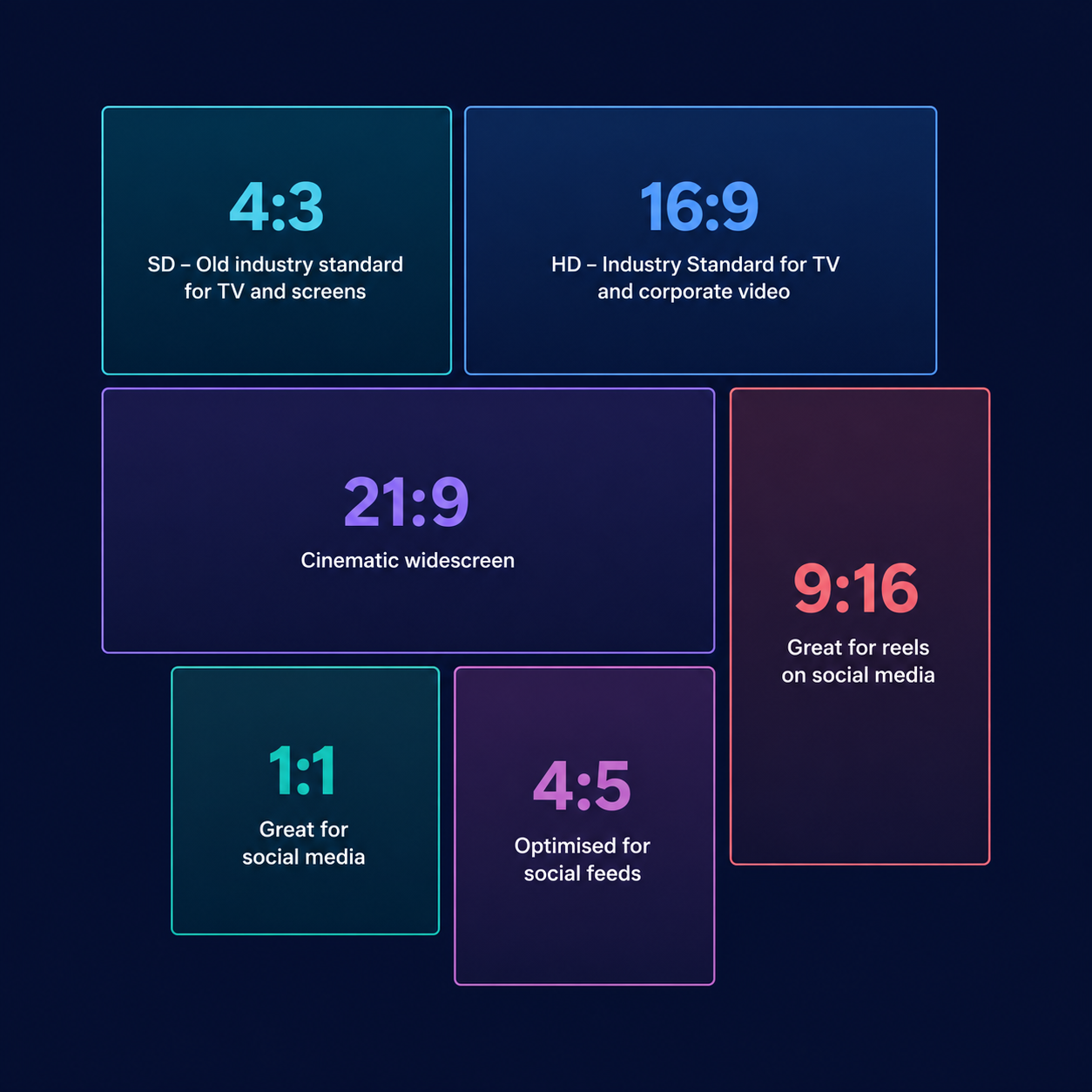
One video, every platform: the crop workflow
You don't need five edits. You need one good master video and a cropper. The free video crop tool runs entirely in your browser (your footage never uploads anywhere) and keeps the audio in the export. Here's the full workflow:
- Drop in your video. MP4, WebM or MOV. It loads instantly because there's no upload.
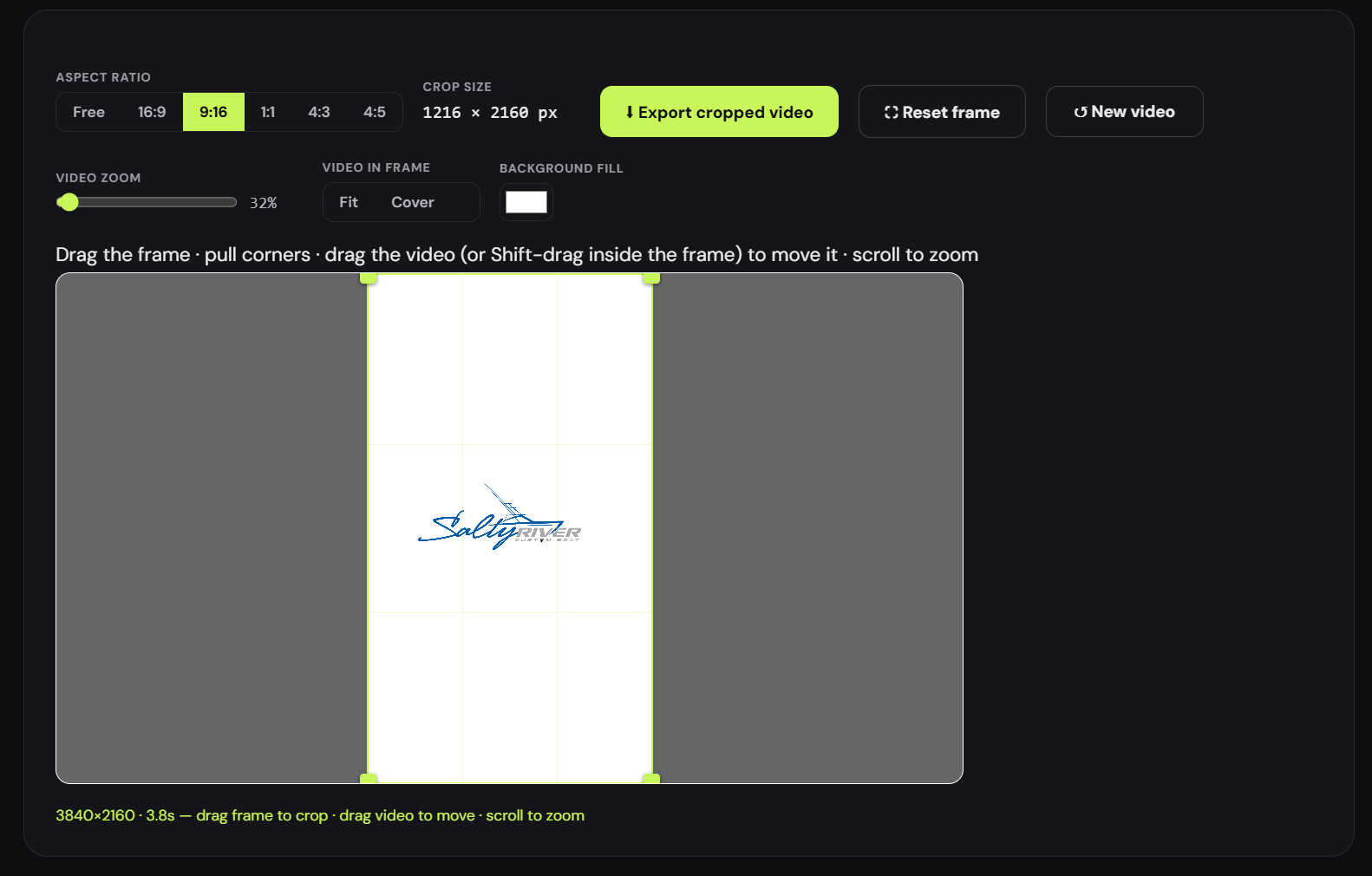
- Pick the destination ratio. One tap on 9:16, 1:1, 4:5, 4:3 or 16:9 locks the frame to that shape.
- Frame the shot. Drag the frame onto your subject and pull the corners to size it. A rule-of-thirds grid inside the frame keeps the recomposition intentional rather than accidental.
- Zoom and position the video. Scroll (or use the zoom slider) to punch in, and drag the video itself to reposition it under the frame, so the subject sits exactly where you want it in the new shape.
- Or don't crop at all, letterbox on your terms. Hit Fit and the whole video sits inside the frame with the empty space filled by a background color you choose. A landscape clip inside a 9:16 story with brand-colored bars looks designed; the same clip floating in default black looks like an afterthought. Cover does the opposite: fills the frame completely and trims the edges.
- Export. One click records the result to MP4/WebM at up to 1080p with the original sound, and it downloads automatically. No watermark, no account.
Composition rules that survive the crop
- Shoot with cropping in mind. Keep your subject centered and leave breathing room at the edges of the original. That margin is what makes a 16:9 master recut cleanly into 9:16 and 1:1.
- Respect the UI zones on vertical. TikTok and Reels overlay captions, buttons and usernames along the bottom and right edge. Keep text and logos in the middle 80% of the frame.
- Don't stretch, ever. Distorting a video to fit a ratio is the one option worse than letterboxing. Crop or fit; never warp.
- Check the first frame. Feeds show a still until the video plays, make sure the opening frame composes well in the new shape too.
Finishing the pipeline
Cropping is usually the middle step of a social video, not the whole job. Open with a title card from the free text animation maker, close with your animated logo, and if a platform or chat app wants a GIF instead of video, the GIF converter handles that, with the right compression settings. And if the clip that needs to exist in every ratio is your logo animation itself, our custom packages deliver 16:9, 9:16 and 1:1 masters so you never have to crop a compromise.
FAQ
What size should my video be for Reels and TikTok?
9:16 vertical, 1080 × 1920 is the standard. The crop tool's 9:16 preset locks the frame to exactly that shape.
Should I crop or letterbox?
Crop when the action survives the tighter frame, full-screen always wins on vertical feeds. Letterbox (Fit + a background color) when the full width matters: screen recordings, wide product shots, anything where cutting the edges cuts the content.
Does cropping reduce quality?
The pixels you keep are re-encoded at high bitrate, so the kept region looks essentially the same. You're discarding the rest, which is the point. Punching in with heavy zoom magnifies the source, so the more you zoom, the more the original resolution matters.
Do I need different exports for Instagram feed and Stories?
Ideally yes: 4:5 for the feed post, 9:16 for the Story. With one master and a browser cropper, the second export costs about a minute.
Grab whatever footage you posted last, open the free video cropper, and cut it for the platform where it flopped in the wrong shape. Same content, right ratio, it's the cheapest performance upgrade in social video.