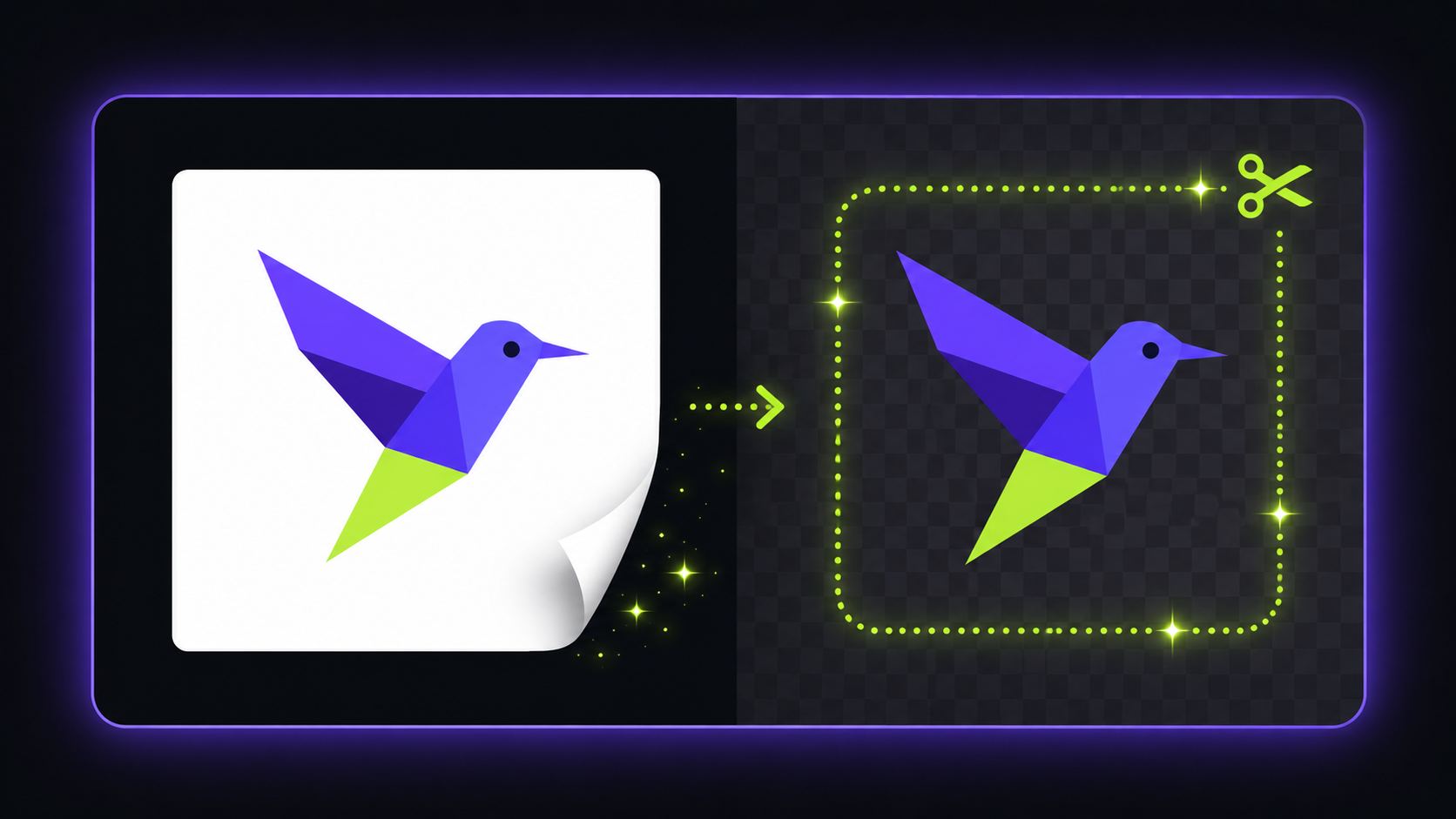
A logo on a white box is the fastest way to make any design look amateur. Whether you're putting your mark on a website header, a video overlay, merch, or a dark-mode app, you need a transparent PNG, and you can make one in under a minute, free, without Photoshop. Here's how, plus fixes for the fiddly cases like white logos, soft shadows and jagged edges.
The 60-second method
- Open the free logo background remover. It runs entirely in your browser, so your file is never uploaded anywhere.
- Drop in your logo: PNG or JPG both work.
- Click the background. The tool removes every pixel of that color and shows you the result on a checkerboard so you can see exactly what's transparent.
- Download your transparent PNG.
For a logo on a clean, solid background, that's genuinely all there is to it.
Fixing the tricky cases
The edges look jagged or have a halo
Logos saved as JPGs get compression noise around the edges, which leaves a faint fringe after removal. Increase the edge softening control a touch, it feathers the boundary pixels so the logo sits naturally on any background instead of looking cut out with scissors.
Parts of the logo disappeared
If your logo contains colors close to the background (light grey text on white, for example), the removal can eat into them. Lower the tolerance setting so the tool is stricter about what counts as "background," then click again.
The background isn't one solid color
Use the color picker to target each background region separately. Two or three clicks usually clears a gradient or a photo-lit backdrop. For genuinely complex photographic backgrounds, crop as close to the logo as you can first, less background means fewer decisions for the tool.
The logo itself is white
Remove the background as normal, then check the result against the dark preview background before downloading. A white logo on a transparent background is invisible on white pages. That's expected, not broken. Keep both a light and a dark version of your mark if you publish on mixed backgrounds.
What to do with your transparent logo
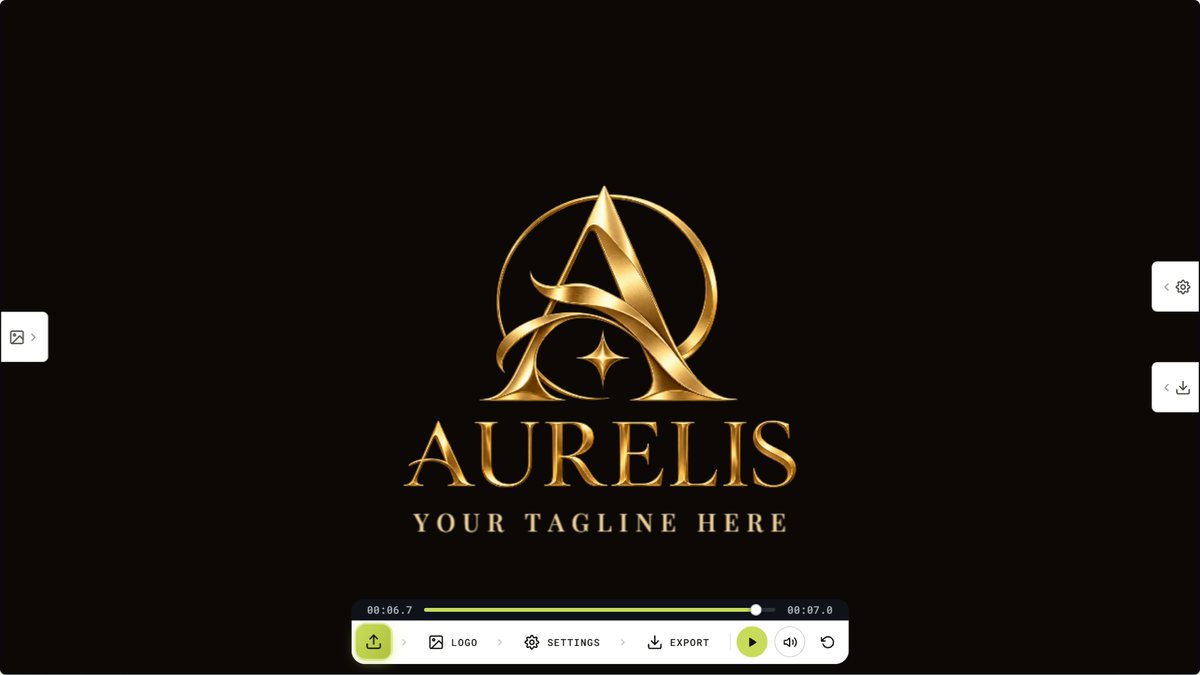
- Animate it. Transparent PNGs are the ideal input for the free logo animator , the motion effects composite cleanly over any scene. This is the single most common reason people need transparency.
- Overlay it on video. Stream corners, YouTube watermarks, presentation bugs, all need transparency.
- Put it on merch and print. Printers need artwork without a background box. For print especially, go one step further and convert the PNG to SVG so it scales to any size without going blurry.
- Generate your favicon and social icons. The favicon generator and social media resizer both give cleaner results from a transparent source.
- Use it in dark mode. Websites and apps increasingly render on dark backgrounds; a transparent logo adapts, a white-boxed one glares.
Tip: always keep the transparent PNG as your master "working" logo file, and export flattened versions from it when a platform demands one, never the other way round.
PNG or SVG, which transparent format do you need?
Both support transparency, but they solve different problems. A transparent PNG is universal: every website, editor and platform accepts it, and it's what you want for animation and overlays. An SVG is a vector: infinitely scalable, tiny in file size, and ideal for websites and print. The best workflow is to make the transparent PNG first, then vectorize it to SVG and run the result through the SVG optimizer. Now you have both, and you'll never need to ask a designer for "the logo files" again.
Start with the background remover , and if the end goal is a logo that moves, the logo animation guide picks up exactly where this one ends.