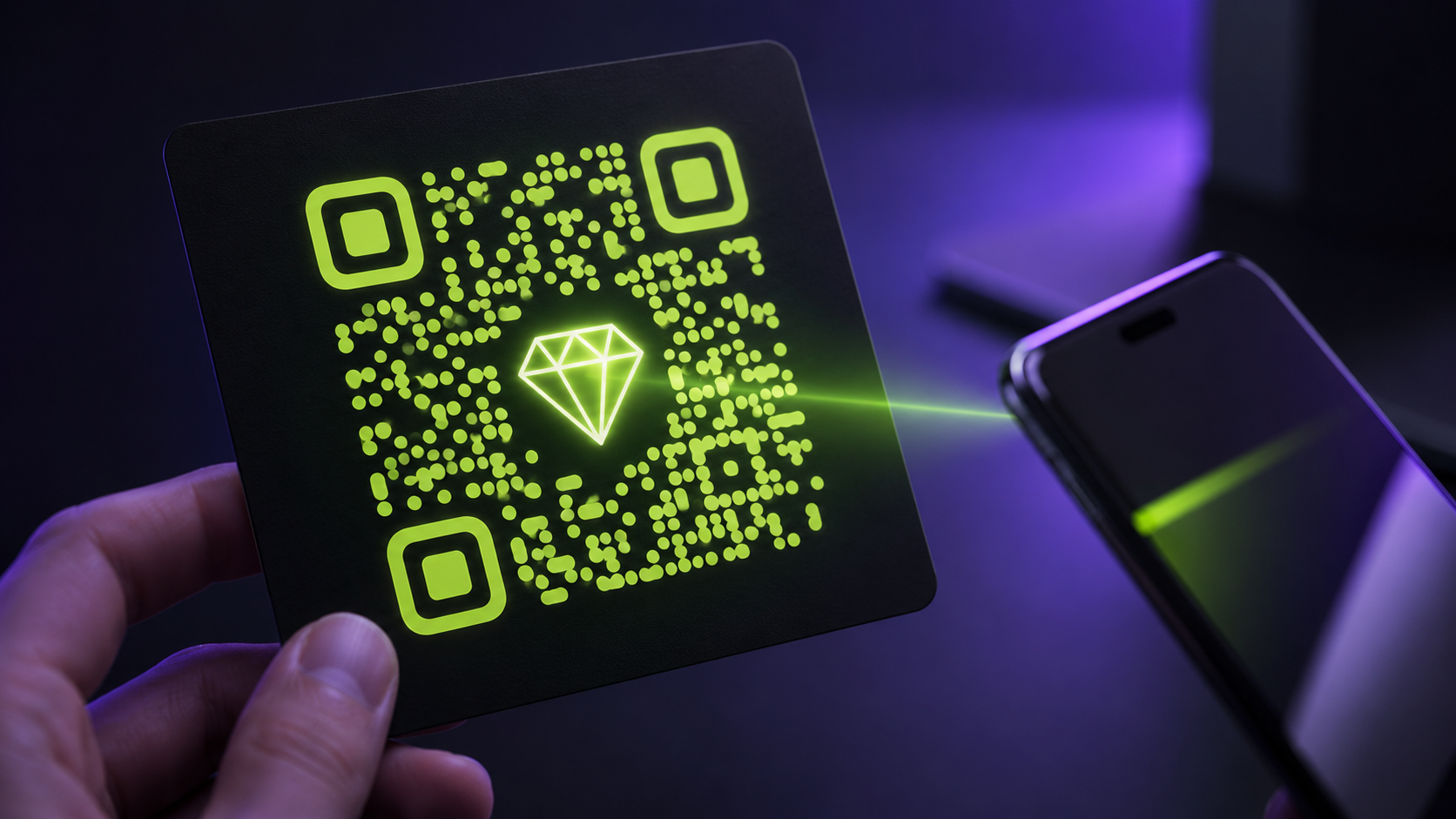
A plain black-and-white QR code says "scan me, I could be anything." A QR code with your logo in the middle, in your brand colors, says "scan me, this is us", and that difference matters anywhere trust affects whether people scan: menus, packaging, flyers, invoices, business cards. Here's how to make one free, why the logo doesn't break the code, and the mistakes that stop branded QR codes from scanning.
Why a logo in the middle doesn't break the code
QR codes are built with error correction, redundant data that lets a scanner reconstruct the message even when part of the pattern is missing or damaged. At the highest error-correction level, up to roughly 30% of the code can be obscured and it still scans. A sensibly-sized centre logo sits comfortably inside that budget, which is exactly what the QR code generator with logo is designed around: it keeps the logo within safe bounds so the code stays reliable.
Making yours in five steps
- Open the free QR code generator and enter your destination: a URL, contact card, Wi-Fi login or plain text.
- Upload your logo. A transparent PNG looks cleanest in the centre; if yours has a background, the background remover fixes that in seconds. Simple, bold marks work best at QR sizes, a detailed logo becomes an unreadable smudge at 2cm.
- Apply your brand colors. Recolor the dots and switch to rounded modules for a softer look. If you don't know your exact brand hex codes, the palette extractor reads them straight out of your logo file.
- Export. Download a high-resolution PNG for digital use and a vector SVG for print, the SVG scales from a business card to a shop window without a hint of blur.
- Test before you print. Scan it with at least two different phones, from an arm's length away, in normal light. Thirty seconds of testing beats a thousand misprinted flyers.
The rules that keep a branded QR code scannable
- Contrast is king. Dark code on a light background. Scanners struggle with inverted (light-on-dark) codes and fail on low-contrast pastel-on-white combinations.
- Keep the quiet zone. The empty margin around the code is part of the spec, don't let design elements crowd it.
- Don't oversize the logo. Bigger than the tool's safe bounds and you're spending error-correction budget you may need for print imperfections and worn surfaces.
- Print big enough. A code should be at least 2×2cm for close-range scanning, and larger the further away people will stand. A poster across a room needs a much bigger code than a table tent.
Tip: use the SVG export for anything printed. Raster codes that get scaled up in a layout are the number-one cause of "it won't scan" complaints.
Where branded QR codes earn their keep
- Restaurant menus and table tents : a branded code reassures guests it's the official menu, not a sticker someone slapped on.
- Product packaging : link to setup guides, registration or reorder pages while reinforcing the brand on-shelf.
- Business cards , one scan to save your contact details beats typing them.
- Flyers, posters and vehicle wraps : bridge print to a booking page or offer, with the logo signalling who's asking.
- Invoices and quotes : link straight to your payment page and get paid faster.
- Video and presentations , the tool also exports an animated pulsing version of your code, made for end screens and slide decks where a static code goes unnoticed. Pair it with an animated logo and your outro does the selling for you.
Finish the set
A branded QR code is usually part of a bigger push: new packaging, a rebrand, a launch. While you're at it, the free logo toolbox covers the rest in one sitting: favicons, social sizes for every platform, a transparent master logo and an animated version for video. All free, all in the browser, starting with the QR code generator.