There is no shortage of "convert image to vector" websites. Most of them share the same three catches: they upload your file to a server you don't control, they slap a watermark on the result or lock the download behind a sign-up, and they cap you at a handful of free conversions before the paywall appears. We built the opposite of that, and we think it's the best free image-to-vector converter you can use right now.
Convert Image to Vector turns a PNG, JPG or WebP into a clean, scalable SVG in a couple of seconds, entirely inside your browser tab. No upload. No account. No watermark. No daily limit. You can even pull your Wi-Fi after the page loads and it will still work, because your image never leaves your device.
What makes it the best free option
- It runs 100% in your browser. The tracing engine is compiled to WebAssembly and executes locally. Nothing is sent to a server, so private logos and client work stay private.
- It's genuinely free. No sign-up wall, no watermark burned into the output, no "3 free conversions then upgrade." Trace as many images as you like.
- Three one-click presets. You don't need to understand tracing to get a good result: pick Logo, Sketch or Photo and the right settings are applied for you.
- You get a real vector. The output is standard SVG paths with editable fills: not a raster image quietly wrapped in an SVG tag, so it opens and edits properly in Illustrator, Figma and Inkscape.
- A human backup for the hard cases. When an image is too complex to trace cleanly, a designer will redraw it by hand from $15, right from the same page.
How to convert an image to vector (3 steps)
- Drop your image in. Drag a PNG, JPG or WebP onto the tool, or click to browse. Logos, icons, flat illustrations and scans give the cleanest results.
- Pick a preset. Choose Logo / Flat color for logos and icons, Sketch / Line art for black-and-white drawings and scans, or Photo / Detailed for colorful artwork. The trace updates instantly.
- Download the SVG. Hit Download SVG, or copy the SVG code straight to your clipboard. That's it: a scalable vector, ready to use anywhere.
The whole thing takes about ten seconds, and everything renders live so you can see exactly what you're getting before you download.
Which preset should you pick?
The preset sets how the tracer reads your image, so matching it to the source matters more than any single slider:
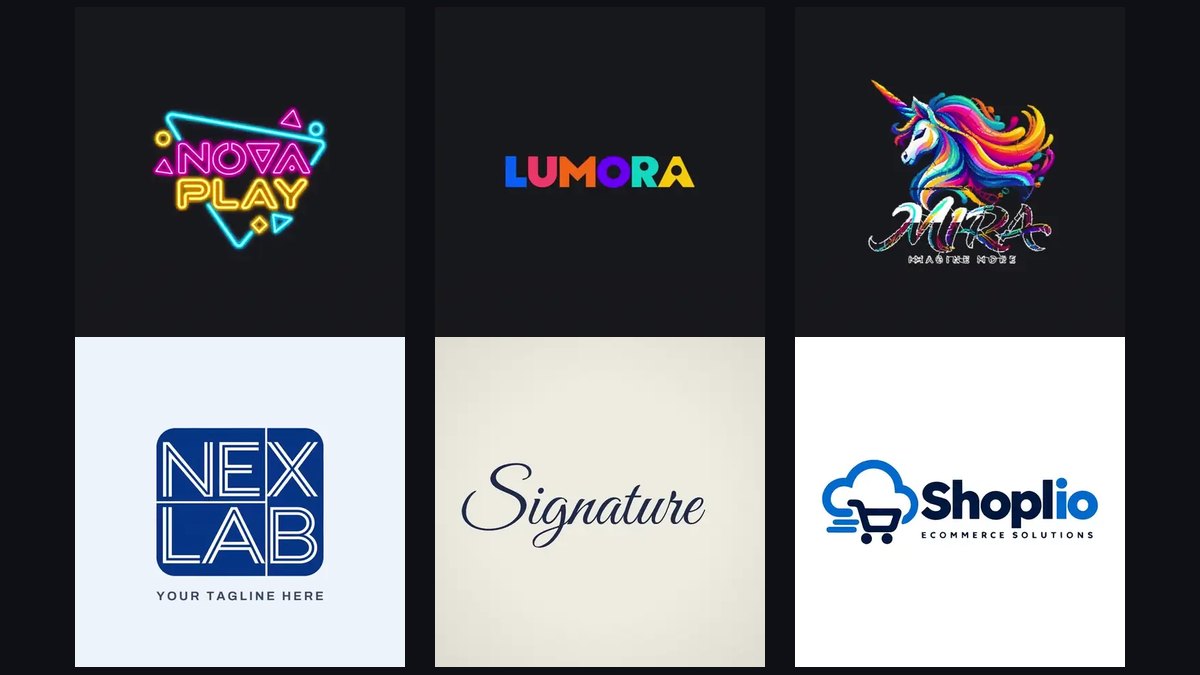
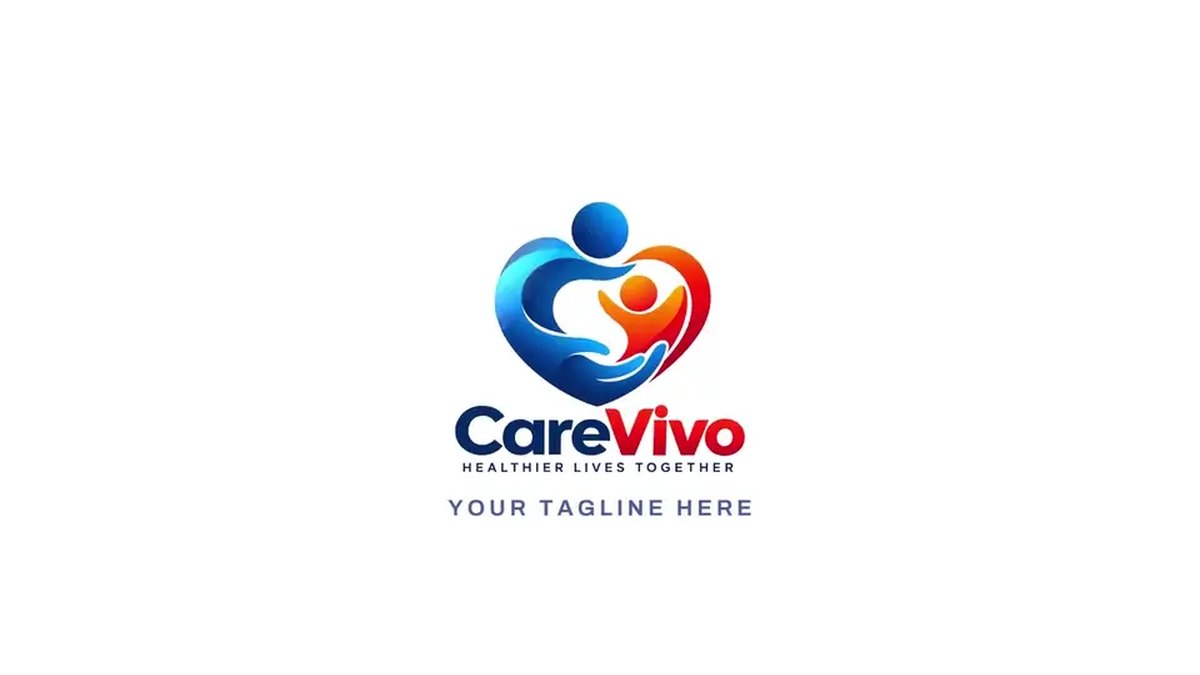
- Logo / Flat color : best for brand marks, icons and anything with a few solid colors and crisp edges. This is the one most people want.
- Sketch / Line art : best for black-and-white line drawings, hand-drawn logos and scanned artwork, where you care about the outlines rather than color.
- Photo / Detailed : best for illustrations, gradients and photos, where the tracer keeps far more color regions. Expect a stylized, posterized look, that's the nature of vectorizing a photo.
If the result isn't quite right, open the Advanced panel. Raise the Speckle filter to drop tiny stray shapes, lower Color precision to merge similar tones into fewer clean colors, and lower Path precision to shrink the file. There's also a Remove white background option for logos sitting on a solid white block.
What vectorizes well, and what doesn't
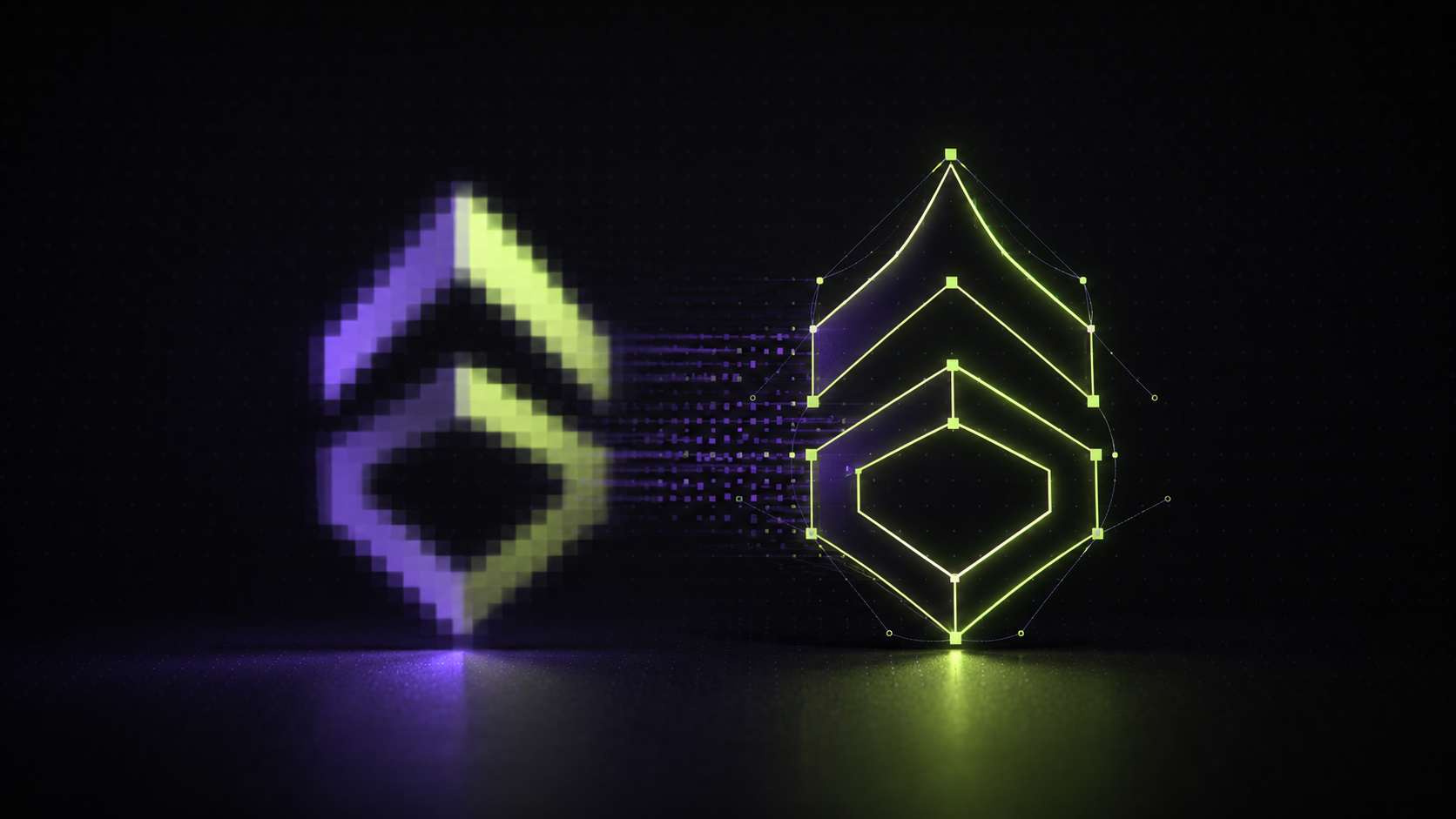
Being honest about this is what separates a useful tool from a hype machine. Auto-tracing is superb for flat, clean artwork: a logo with solid colors and sharp edges often comes out pixel-identical to the original at normal sizes. Where it struggles is soft gradients, tiny text, heavy photographic detail and worn or blurry scans: those simply can't be represented as a handful of flat paths, so you'll get a stylized approximation rather than a perfect copy.
Rule of thumb: if your image looks like it was drawn with a few solid colors, it will vectorize beautifully. If it looks like a photograph, expect a stylized result.
It's a real vector, so do more with it
Because you get true SVG paths, the file is a starting point rather than a dead end. Once you've traced your logo you can:
- Shrink it with our free SVG Optimizer before putting it on a website: smaller file, identical look.
- Animate it in the free SVG Animation Studio, drawing it on path by path or making it fade and build in.
- Clean it first : if your logo came on a busy background, run it through the Background Remover for a cleaner trace.
When you need it perfect: manual redraw
Some images deserve a human. Mascots, detailed illustrations, gradient-heavy marks and faded old scans are exactly the cases automatic tracing can't fully rescue. For those, the tool offers a manual vector redraw: send us the image and a professional designer rebuilds it by hand into a flawless, print-ready vector: delivered as SVG, PDF, EPS and PNG. It starts at $15 for a simple logo, and the order options are right there on the page under the converter.
Wrap-up
A good vectorizer shouldn't cost you your privacy, your email address or a watermark across your own logo. This one is free, runs entirely in your browser, gives you a real editable SVG, and hands the genuinely hard jobs to a designer when you want them done by hand. That combination is why we're comfortable calling it the best free image-to-vector converter available, and the only way to know is to drop a logo in and watch it trace.