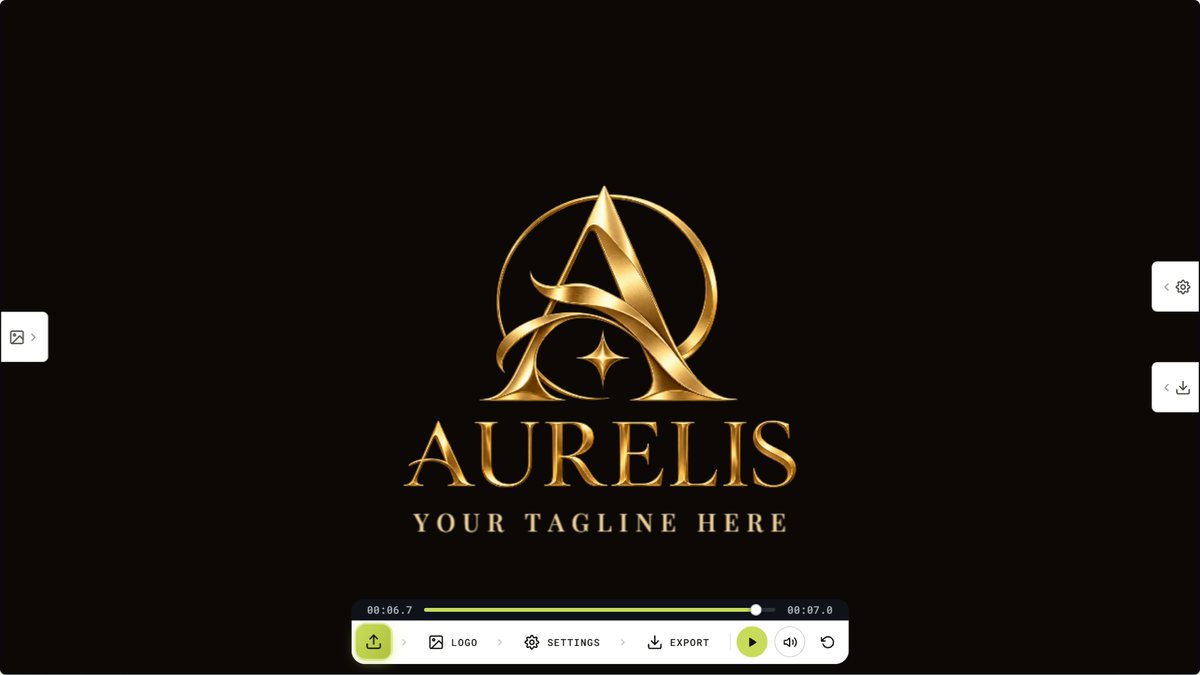
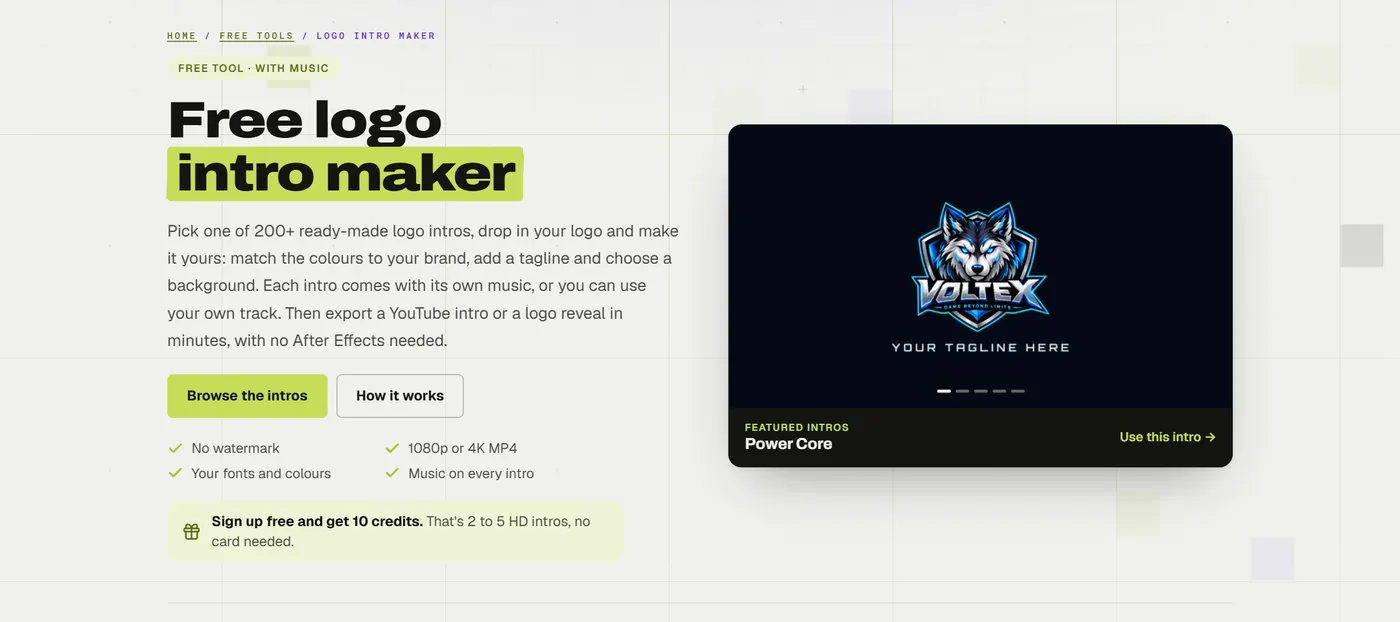
This guide walks through every step in our free Logo Intro Maker, with a screenshot of each panel, and then covers the small details that make an intro look like it was made for your brand. You won't need After Effects, a template marketplace or a video editor, and the MP4 you download already has its soundtrack in it.
The short version:
- Open the Logo Intro Maker and pick an intro.
- Upload your logo. An SVG or a transparent PNG works best.
- Change the colours, the background and the tagline.
- Keep the intro's own music, upload your own track, or switch the sound off.
- Export an MP4 in 1080p or 4K, or a GIF. There's no watermark.
What you need before you start
Just your logo. An SVG is ideal because it's a vector, so it stays sharp at any size, 4K included. A PNG with a transparent background is the next best thing. A JPG works too, but if your logo sits on a white box, that box will show up in the intro. You can remove it first with the free background remover, or turn a blurry file into a clean SVG with the image to vector converter.
You don't need an account to try any of this. Picking an intro, adding your logo and previewing it are all free. You only sign up when you want to download the file.
Step 1: Pick an intro that fits your brand
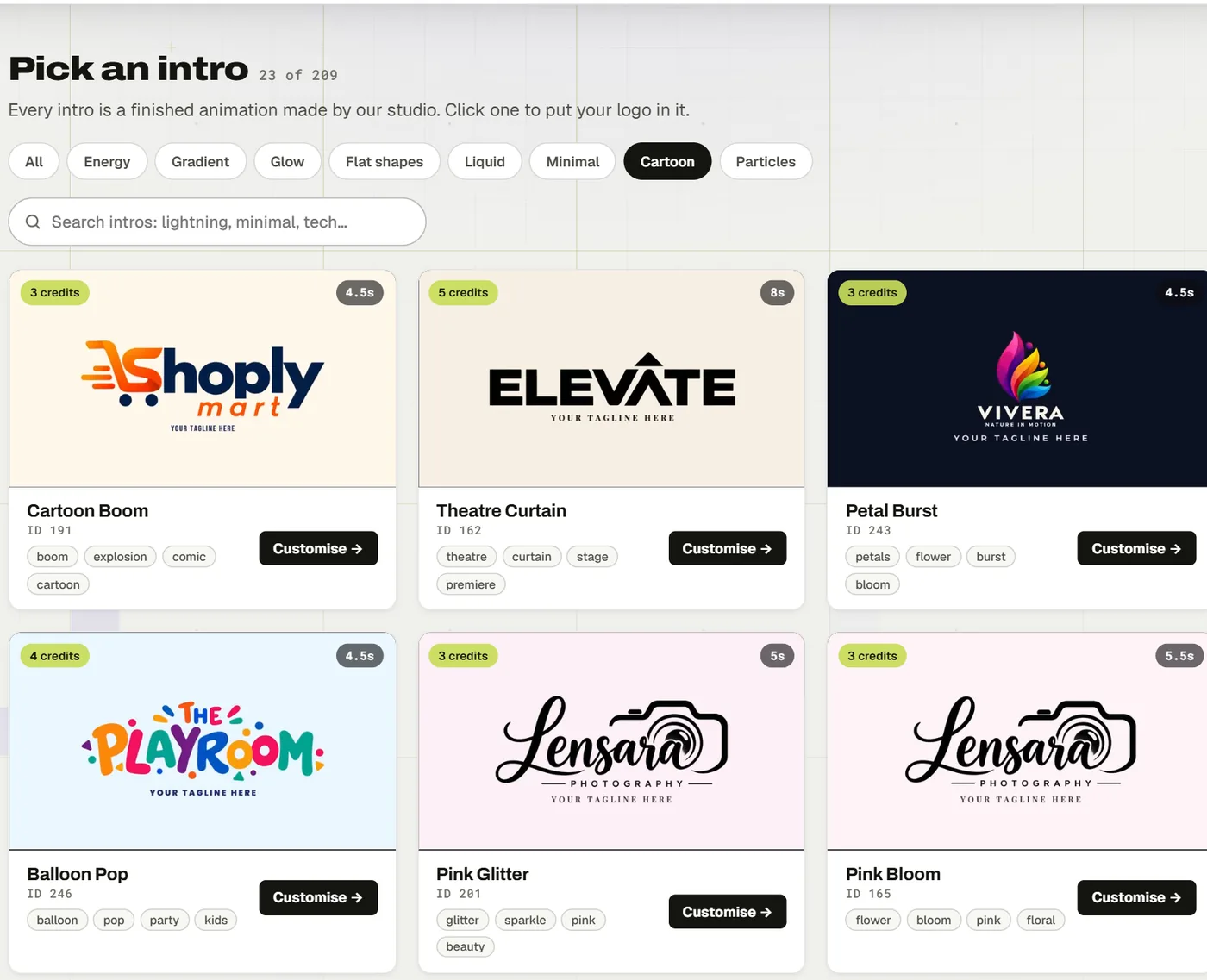
The intro gallery holds 200+ finished animations made by our studio, grouped into styles like Energy, Glow, Liquid, Minimal and Cartoon. Each card plays a preview as you scroll and shows two things before you commit: how long the intro runs, from 4.5 to about 8 seconds, and what it costs to download.
A quick way to narrow it down is to match the energy of the intro to the energy of your content. A gaming channel can carry lightning and fire. A law firm or a dental clinic will look better with a clean minimal reveal. If you can't decide, the Minimal and Gradient styles suit almost any logo.
Step 2: Upload your logo
Click Upload logo in the Logo panel on the left. It takes PNG, SVG, JPG and WEBP files. Your logo shows up in the preview straight away, already animated, so you can judge the result before changing anything else.
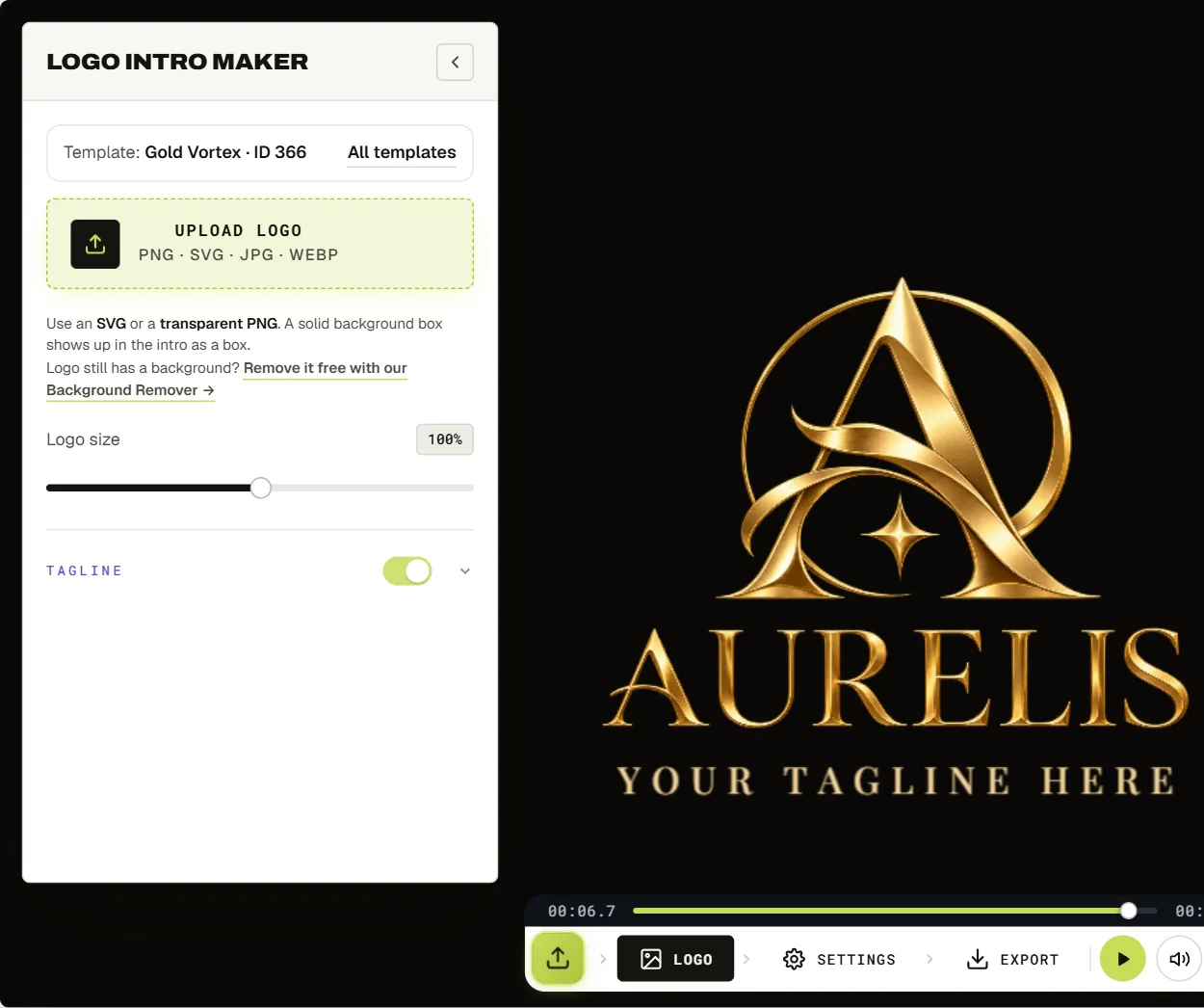
If the logo looks too big or too small for the animation, use the Logo size slider. Wide wordmarks usually need a little less size than square icons. Below it is the Tagline. Type your own line and set its font, size, weight, spacing and position. If your logo already has a slogan in it, switch the tagline off.
Step 3: Match the colours and the background
Open Settings with the gear icon. Under Template colours you can change every colour the template offers, like the glow behind your logo, the particles or the lightning, so the whole animation sits in your brand palette. Under Background you can keep the template's own background or swap it for a solid colour, a gradient or your own image.
One tip from making a lot of these: use your brand's accent colour for the effects and keep the background dark or neutral. Bright effects on a busy background get lost.
Step 4: Choose the music
Every intro comes with its own soundtrack, music and sound effects timed to the animation, so the hit lands at the moment your logo appears. It plays in the preview while you edit. Your browser may want one click on the page before it plays any sound. That's normal, and the editor shows a small Click for sound button while it waits.
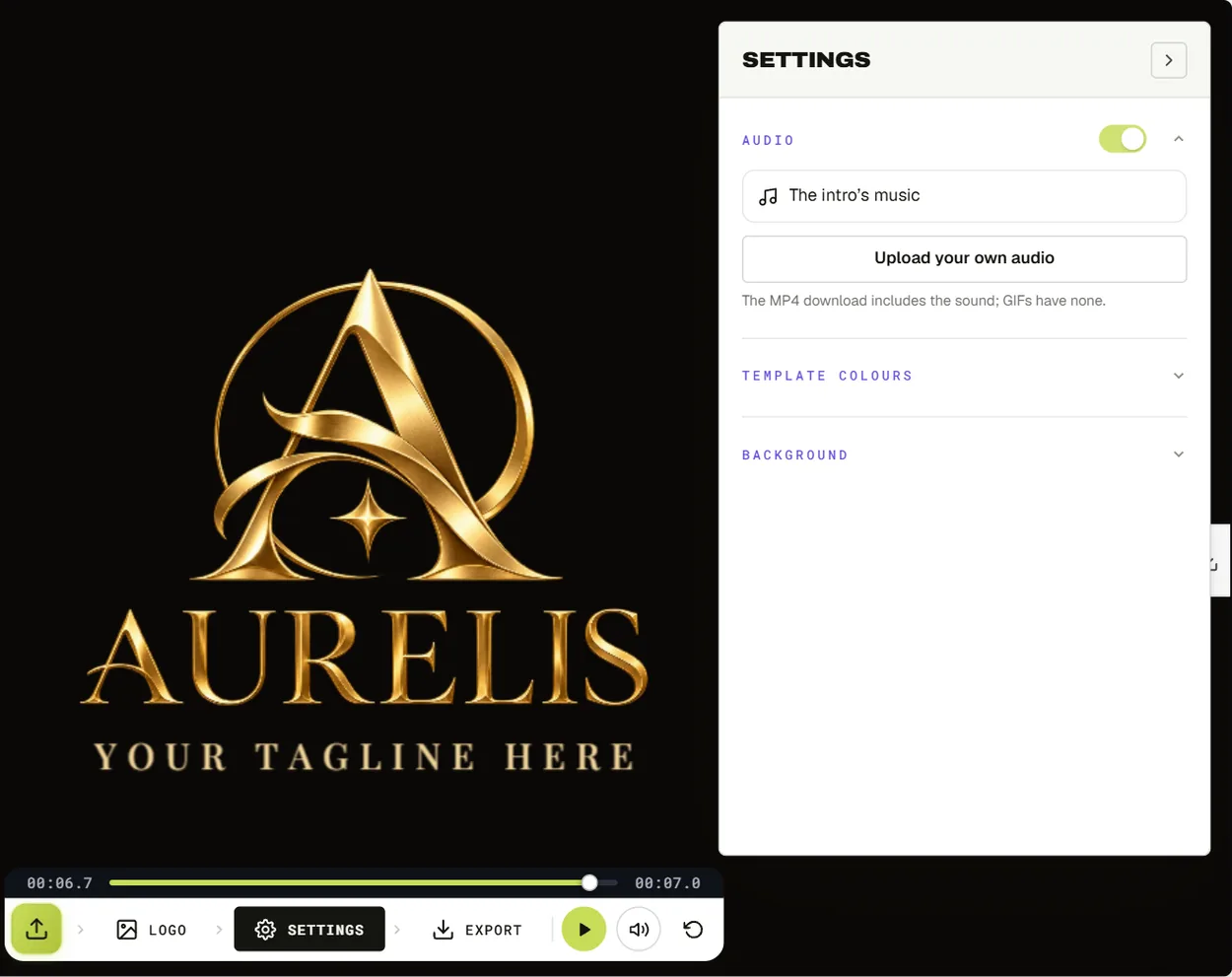
You have three choices in the Audio section of Settings:
- Keep the intro's music. It's on by default and it already matches the length of the animation.
- Upload your own audio. Use your channel's jingle or any track you have the rights to. If it's longer than the intro, the editor cuts it to the exact length and fades out the end, so there's nothing to trim. Your file is read in your browser and never uploaded to our server.
- Switch the sound off if you'd rather add music later in your video editor.
The speaker button under the preview only mutes the preview. It doesn't change what ends up in your download.
Step 5: Export your intro
Open Export. You can render an MP4 in 1080p (Full HD) or 4K (Ultra HD), or a GIF at 640p. The MP4 includes the music. A GIF can't carry sound, but it's handy for websites, email signatures and chat apps.
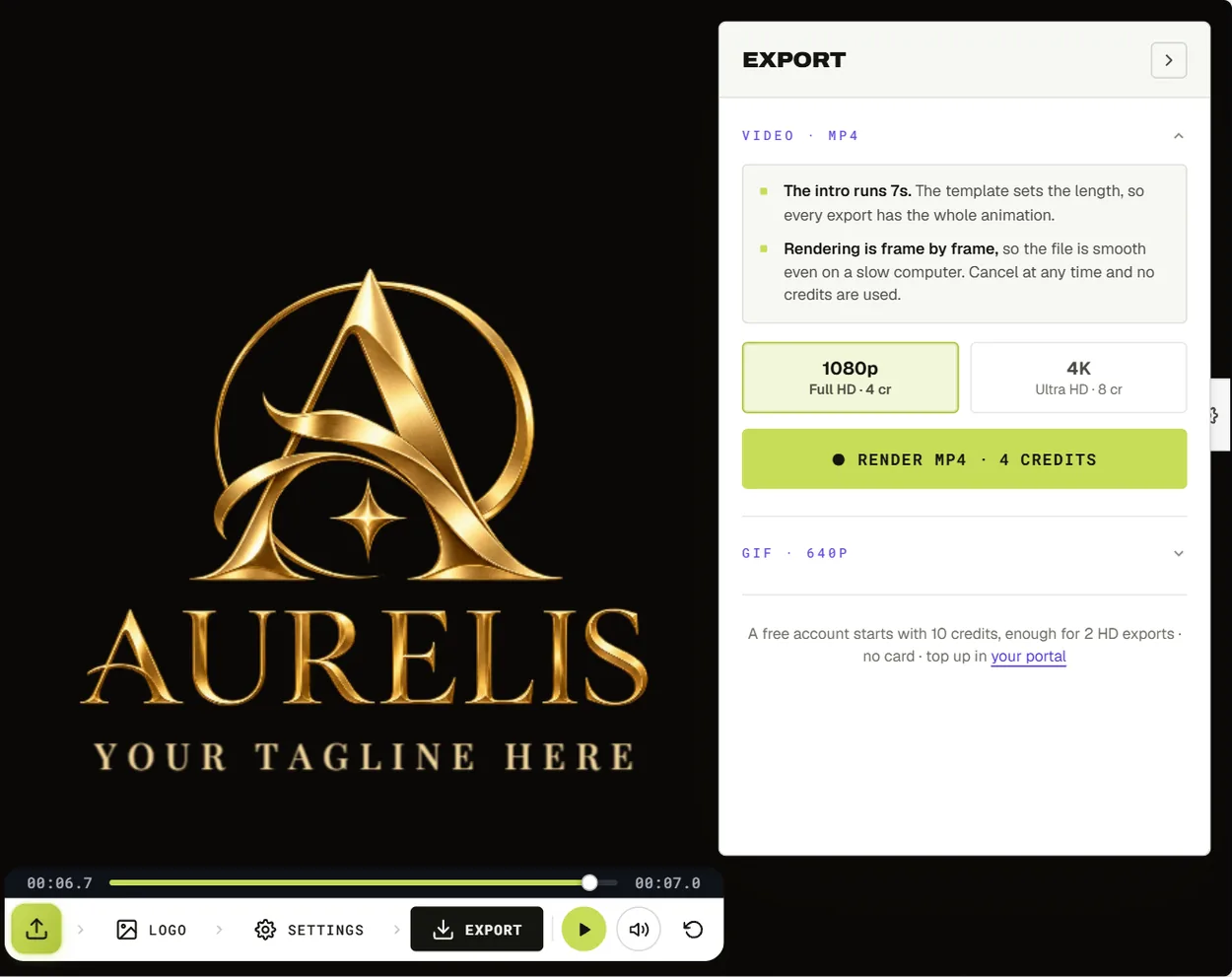
The render runs in your browser, frame by frame, so the file comes out smooth even on an older laptop. You can cancel at any point and no credits are used. To get the music in the file, export from Chrome, Edge or Firefox.
As for cost, each intro shows its price, from 2 to 5 credits for 1080p, and 4K costs 1 credit more. A new account comes with 10 free credits and doesn't ask for a card, so your first 2 to 5 intros cost nothing. Credits don't expire and there's no subscription.
Tips for a logo intro that looks professional
Keep it short
Every intro in the library runs from 4.5 to about 8 seconds, and that's on purpose. People want to get to your content. A short intro that ends on a clean hold of your logo feels confident. A 15 second one feels like an ad.
Start from a vector logo
A small PNG gets soft when it's scaled up to fill a 4K frame. An SVG stays crisp at any size. If all you have is a JPG from years ago, run it through the vectorizer first. It takes a minute.
Let the sound fit the brand
A soft piano sting on a monster truck channel feels as wrong as a bass drop on a wedding photographer's reel. Each soundtrack was chosen to suit its animation. So if the music feels off for your brand, try a different style of intro before you replace the track.
Check it on mute
Plenty of people scroll social feeds with the sound off. Your intro should still work silently, so make sure the logo is readable and stays on screen long enough to register.
Use the same intro everywhere
Pick one and stick with it. The fifth time a viewer sees the same intro, it starts to feel like your brand. Changing it every video throws that away.
When After Effects or CapCut makes more sense
A template tool isn't the answer to everything. If you want an intro nobody else has, designed from scratch around your brand, After Effects is the right tool, and it takes real time and skill. If all you need is your logo fading in over a clip, any editor like CapCut or Premiere Pro can do that in a few minutes. The Logo Intro Maker sits in between: a finished, animated intro with its own music, made in the time it takes to drink a coffee. And if you'd rather hand the whole thing to someone, our motion designers make custom logo animations too.
Frequently asked questions
Is the logo intro maker really free?
Choosing an intro, adding your logo and previewing it with the music are free, with no account. Downloading uses credits. A free account comes with 10 credits, enough for 2 to 5 intros in 1080p, and nothing you export carries a watermark.
Can I use my own music?
Yes. Open Settings, go to Audio and click Upload your own audio. If the track is longer than the intro, the editor cuts it to length and fades out the end. Only upload music you have the rights to use.
Does the GIF have sound?
No. The GIF format can't hold sound. Download the MP4 if you want the music.
What size is the video?
It's 16:9, in 1920 × 1080 for 1080p or 3840 × 2160 for 4K. The template sets the length, from 4.5 to about 8 seconds.
Can I make a vertical intro for Shorts or Reels?
Not yet. Exports are 16:9 for now. You can still place the intro inside a vertical video in your editor.
Do I need to install anything?
No. Everything runs in your browser, including the render.
Ready to try it? Pick an intro and put your logo in it. If it's for a YouTube channel, read how to make a YouTube intro with your logo next, or browse 20 of our favourite logo intro templates by style.