An animated server icon or a custom animated emoji makes a Discord community feel alive, and instantly more legit. The good news: you don't need Photoshop, After Effects or any paid software to make one. You can do the whole thing free, in your browser, with the tools already on this site.
Here's what Discord actually requires, and the exact free workflow to make an animated icon or emoji from your logo.
First, what Discord requires
Discord gates animated assets behind boosts and Nitro, so it's worth knowing what you need before you start:
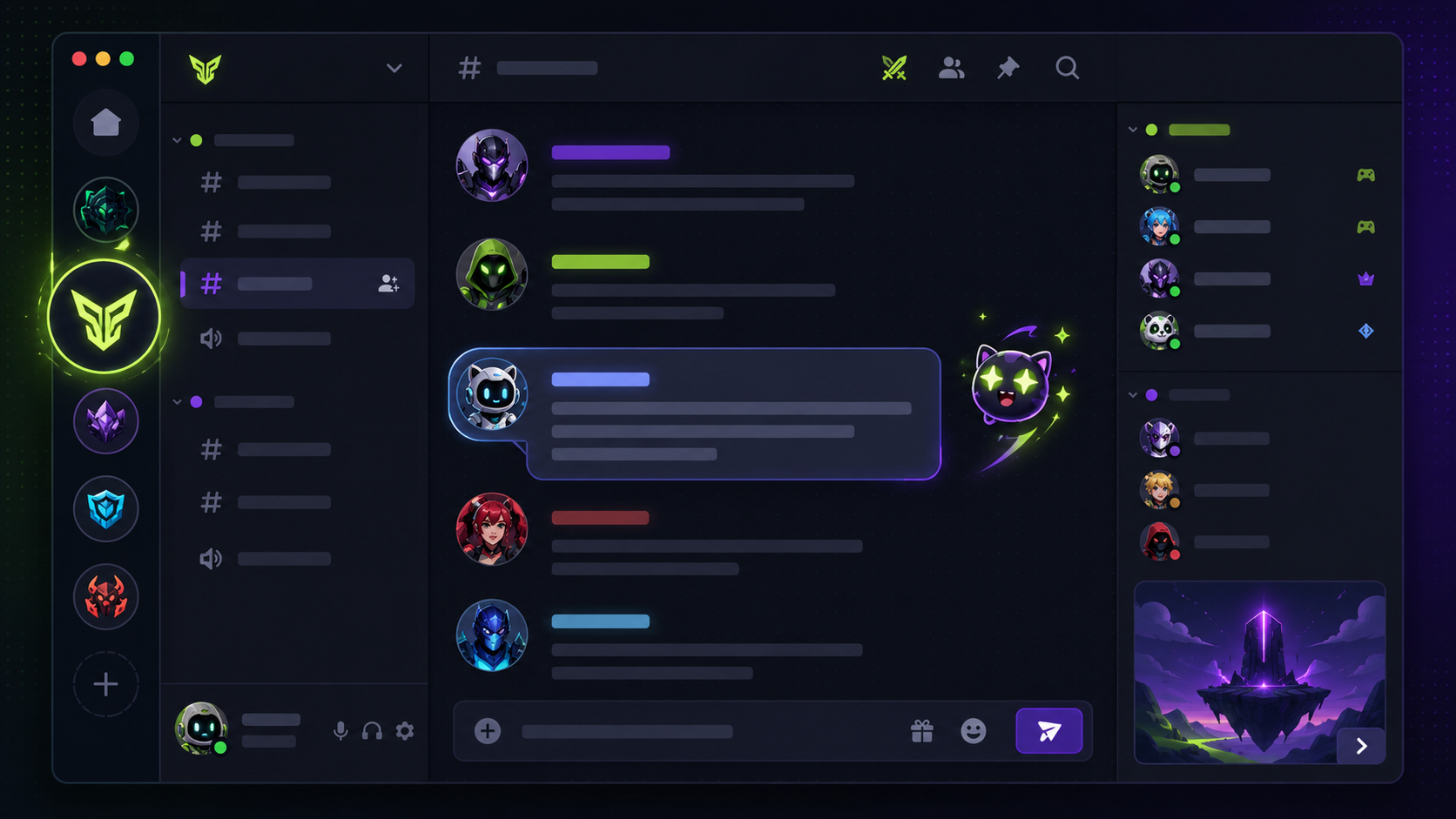
- Animated server icon , needs Server Boost Level 1. Upload a square image (512×512 is the sweet spot) as a GIF.
- Animated emoji : GIF only, 128×128, and it must be under 256 KB. Adding one uses your server's emoji slots; using animated emoji outside that server needs Nitro.
- Animated avatar & profile banner , require Discord Nitro.
If you upload a GIF without the right boost or Nitro, Discord doesn't reject it, it just shows the first frame as a still image. So always make your first frame look good on its own.
One more thing that matters more than anything else: these render tiny. A server icon sits around 48px in the sidebar; an emoji shows at roughly 32px in chat. Bold shapes and high contrast win. Fine detail disappears.
Make an animated server icon (step by step)
- Start with a clean, transparent logo. If yours sits on a white box, run it through the free Background Remover first so it looks right inside Discord's circular crop.
- Animate it. Open the Logo Animator, drop in your logo, and pick an effect. Keep it gentle: a slow shine, a soft pulse or a subtle spin reads far better at 48px than anything frantic. Export as a GIF.
- Size it to a square. Use the Image Resizer to make it 512×512 (its canvas mode fits your logo neatly inside exact dimensions), or grab the Discord preset in the Social Media Resizer.
- Upload it. In Discord, go to Server Settings → Overview, click the icon, and choose your GIF. You'll need Boost Level 1 for it to animate.
Make an animated emoji (the 256 KB trick)
Emoji are where most people get stuck, because Discord rejects anything over 256 KB, and a raw animated GIF is usually much bigger than that.
- Keep the design bold. One clear shape, 2–4 colours. Detail is wasted at 32px.
- Animate and export a GIF from the Logo Animator, then resize it to 128×128 in the Image Resizer.
- Compress it under 256 KB. This is the important step. Run the GIF through our free GIF Compressor : drop the frame rate, trim the colours and scale it down until the readout shows under 256 KB. Our GIF compression guide for Discord walks through the exact settings.
- Upload it. Go to Server Settings → Emoji → Upload Emoji, name it, and it's ready to use with a colon shortcut.
Animated avatar or profile banner (Nitro)
The workflow is identical, animate in the Logo Animator, export a GIF, and size it (512×512 for an avatar). The only difference is that Discord needs an active Nitro subscription for the avatar or banner to animate. Without it, your first frame shows as a normal static avatar.
Quick tips for animations that survive being tiny
- Bold silhouette first. If it's not readable as a still frame at 32px, animation won't save it.
- Subtle beats flashy. A gentle shimmer or colour shift looks premium; rapid motion looks like a banner ad and gets muted mentally by your members.
- Short loop, small palette. Fewer frames and fewer colours is how you stay under 256 KB for emoji.
- Design the first frame to stand alone : it's what non-boosted or non-Nitro viewers will see.
The tools you'll use
- Background Remover , a clean transparent logo to start from.
- Logo Animator : the animation itself, exported as GIF.
- Image Resizer : exact 512×512 or 128×128 sizing.
- Social Media Resizer : Discord and every other platform size at once.
- GIF Compressor , squeeze emoji under the 256 KB limit.
All of them run in your browser, free, with no watermark and nothing uploaded to a server.
Wrap-up
Animated Discord assets look like they take specialist software. They don't: it's remove the background, animate, resize, compress, upload. Keep the motion subtle and the first frame clean, and your server will look the part.